









Microsoft Office 365 is designed from the ground up to enable seamless collaboration and encourage greater team communication. With this philosophy built into every app, it’s not surprising that there is some crossover between what each app can be used for.
Yammer, SharePoint, and Teams can all be used to improve office communication, each adding different value to the process. Here are 5 ideas for how you can use Yammer to connect staff and share ideas.
At Grassroots IT we frequently run internal training sessions. These sessions are normally hosted by one of our team who has a particular expertise, or body of knowledge that we want to share with others.
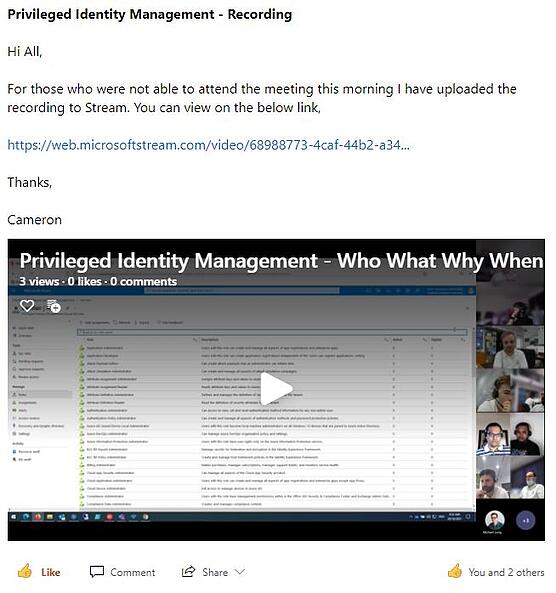
Recent examples include a refresher session for our helpdesk staff on best practice for managing tickets; an introduction to Privileged Identity Management; and a project handover from our project team to the support team, training them on what they need to know to support a new Azure implementation.
Because our team works across multiple locations, these sessions are always held online via a Teams video call, making them super easy to record. These recordings are then stored in Microsoft Stream and shared in a Yammer post.
With the video available in Yammer, staff who were unable to attend the live session can still join the discussion afterwards, raising any further questions or comments that they may have. Stream also offers the additional benefit of automatic transcription of the audio, providing an easy way to search the video for any particular references.
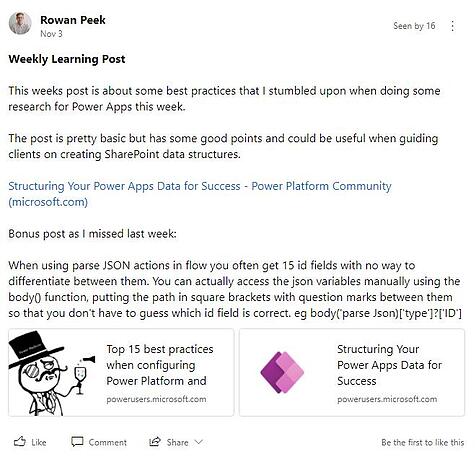
Every organisation has its subject matter experts. These champions have a particular passion for a topic and enjoy digging deeper and learning all they can. Yammer provides the perfect platform for these experts to share their unique knowledge with the broader team. It helps not only to educate others, but also to celebrate their own contribution to professional development.
In the complex and fast moving world of IT we find posts such as this Weekly Learning Post on the Microsoft Power Platform particularly useful for encouraging learning and further discussion.
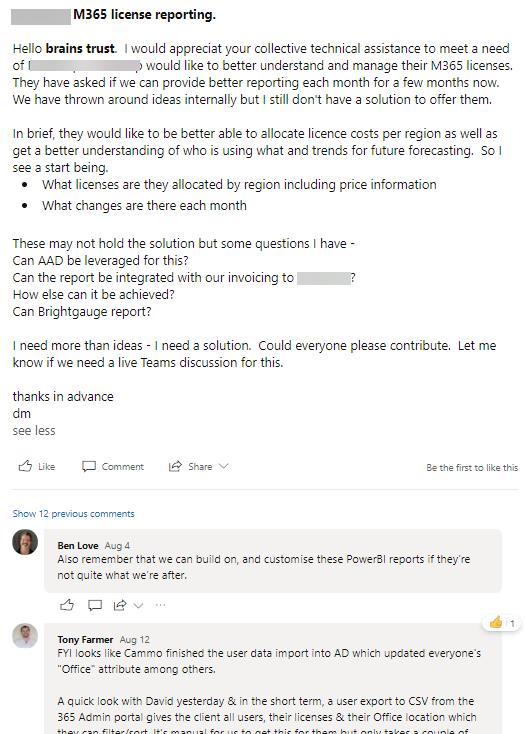
It’s often said that two heads are better than one. So if you have a team full of people with diverse and valuable experience, why wouldn’t you use that resource for exploring ideas? Yammer is the perfect platform for encouraging the sharing of ideas across the broader team in an asynchronous way.
One recent example was when a client wanted greater control of their internal cost allocation of Microsoft 365 licensing. This isn’t something that Microsoft 365 could help with out of the box, but with some collaborative ideation we were able to design a solution that met their needs.
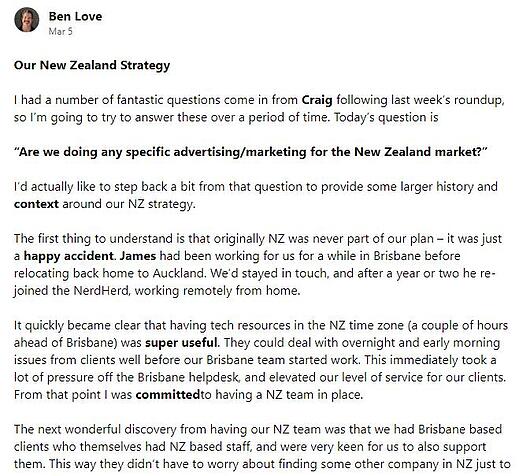
Keeping staff connected across all levels of the organisation can offer significant benefits. It’s particularly important as staff numbers grow, and the risk of communication breakdown increases.
Yammer offers business leaders the ideal platform for keeping staff informed about business performance and strategy, and inviting questions and discussion.
Who says work shouldn’t be fun, right? It’s fascinating to learn more about what our team do with their time. Recently via Yammer we’ve discovered that James grows chilies, David recently completed the trek of a lifetime, and Michael’s mad keen on footy tipping.
If you’d like to know more about how you can use Yammer to connect your staff and better share ideas, contact us today.
When Pam (a busy property manager) broke her wrist roller skating over the weekend, she thought she wouldn’t be able to get back to work at the real estate agency until she got her plaster off.
However what Pam didn’t realise is that Microsoft has some pretty nifty dictation features built into Windows and the Office 365 suite which had her back in action sooner than she expected.
Yes. You can do this with Windows’ dictation feature that uses speech recognition.
This is a speech-to-text tool that provides accessibility to its users and, conveniently, it’s already built in to Windows so you won’t have to install new programs for it to work. Microsoft envisions this tool will support users that are looking for a more accessible alternative to traditional typing.
We don’t want an unfortunate roller skating incident to keep you from getting work done on your PC or mobile device. Here’s how to activate and start using the dictate feature in Windows and Office 365.
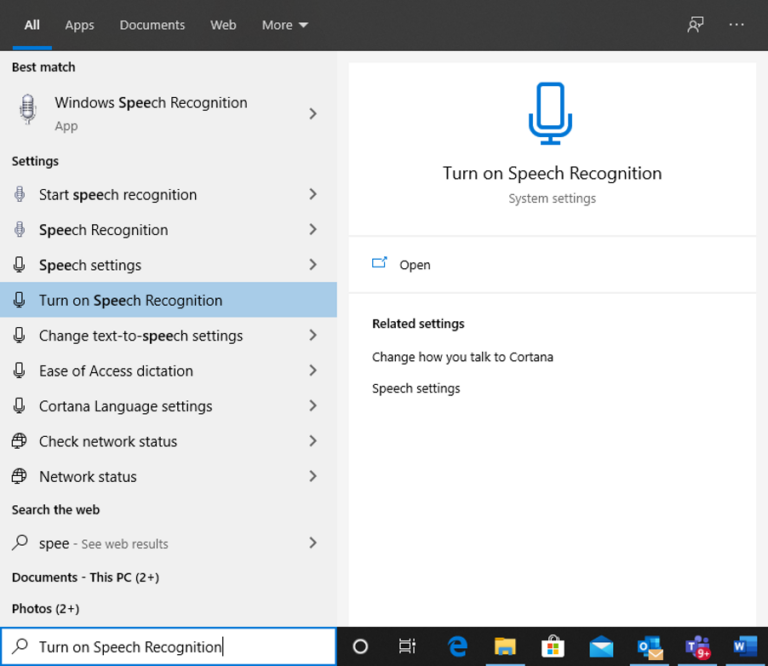
First, you need to make sure that Speech Recognition is enabled on your PC. You can do that by looking up ‘Turn On Speech Recognition’ from your Windows search bar. This will take you to the Speech settings window.
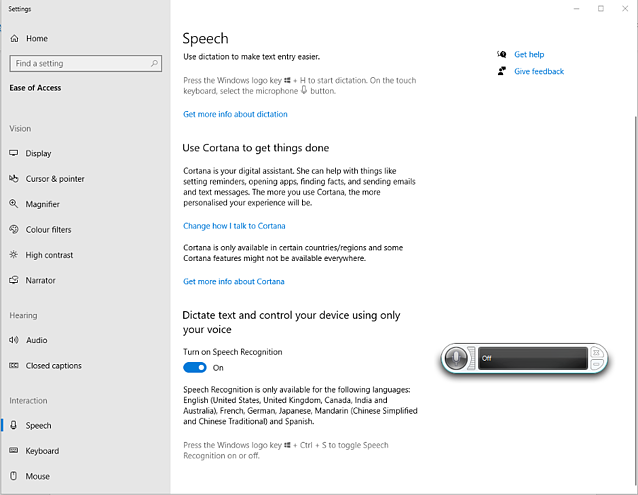
From Speech Settings, see that the toggle marked Turn on Speech Recognition is set to On. If not, click the toggle to turn it on and a speech recognition widget will appear.
Now, you can try using speech-to-text dictation on several apps.
Please note that you need to be connected to the internet to be able to use dictation because it is part of the Azure Cognitive Services. This means that this tool uses utterance from users to further improve the dictation experience.
On a Windows machine, you can utilise Cortana (like Siri on Mac and mobile devices) as your digital assistant to do things such as opening apps, setting reminders and writing emails.
To start dictation, select a program you generate text in (like a Microsoft Word document or an email in Outlook). You can then easily use the hotkey Win+H (Windows icon key then ‘H’) on your keyboard to open the dictate toolbar. You’ll then hear a beep and text on the toolbar saying ‘Listening…’ which means that your dictation service has started.
There are a couple of other ways to activate dictation depending on the app or device you are on.
The dictation feature is most useful in the following Office applications where its main focus is generating text:
(Less helpful in apps like Excel, for obvious reasons).
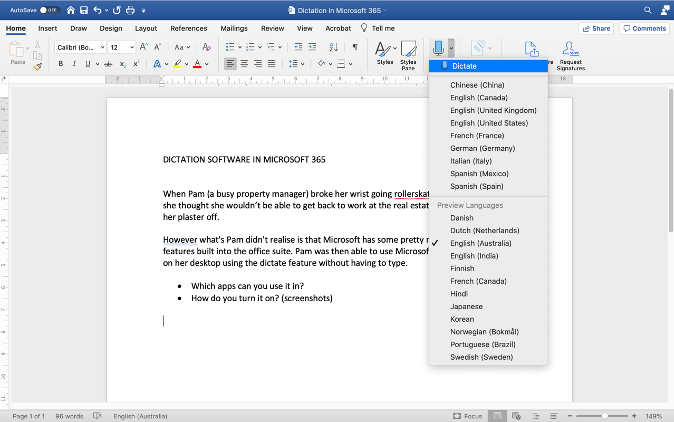
In Microsoft Word, you can find the Dictate button from the Home ribbon.
You can click on the arrow down button to show a drop down menu. It offers various language options for you to choose from.
Here’s a short tutorial video to help you navigate the Dictate button on Microsoft Word:
Unlike Word that has a dedicated button for the Dictate feature, the other Office applications mentioned above may need the use of the hot key Win+H for dictation to start. There are also restrictions to the capacity of the dictate tool to respond to certain commands in other Office applications.
In 25 August, 2020, Microsoft announced a new feature called Transcribe in Word which allows you to record or upload audio of conversations and have it automatically transcribed into a Word document. This feature enables users to proactively participate in an oral discussion without the worry of missing out on notes.
The Transcribe feature supports various audio file types like .mp3, .wav, .m4a or .mp4. For now, Transcribe for Word is available at no extra cost using the web version of Word in all Microsoft 365 subscriptions but you can look forward to using it in your Office mobile in the coming months.
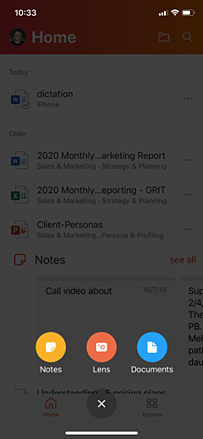
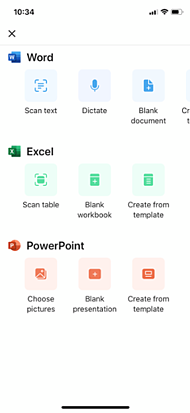
If you’re using the Office app on your mobile phone, tablet, or touch screen device, you can select Documents from the main menu and then choose to Dictate in Word.
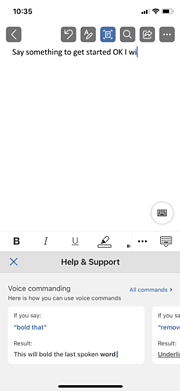
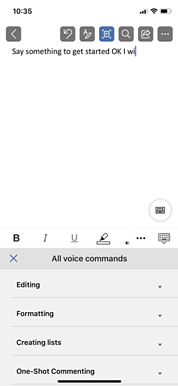
The Help & Support feature within the Office app can provide more tips on voice commands to ensure your dictation experience is more smooth.
Since the dictation service is part of the Azure Cognitive Services, it is continually improving and expanding its command knowledge. We can list down some of the most common commands you can use using the dictation tool but keep in mind that this list will continue to grow as more people use the tool.
| To do this… | Try saying… |
| Clear section | Clear selection or unselect that |
| Delete the most recent dictation result or currently selected text | Delete that; strike that |
| Delete text, such as the current word | Delete [word] |
| Enter one of the following keys: Tab, Enter, End, Home, Page up, Page down, Backspace, Delete | Tap Enter; press Backspace |
| Select a specific word or phrase | Select [word] |
| Turn spelling mode on and off | Start spelling; stop spelling |
Although dictation can support multiple languages, it can only dictate basic words, symbols, letters, and numbers in seven other languages besides English. The dictation commands mentioned above are available in English only.
To know more about dictation commands, Microsoft has a document source page to help you.
It is believed that our brains work with ideas faster when we speak than when we write or type words. Therefore, this dictation tool opens a potential for better productivity and faster thought process for its users. But keep in mind that there are still windows for error on this one. Like on formatting and grammar.
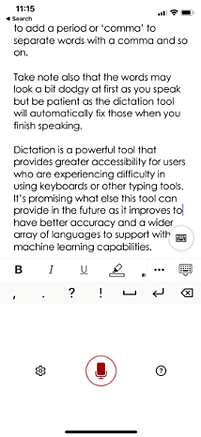
Although it is continually improving to provide a more accurate dictation service, the tool still does listen to what you say and translate it to text as it is without the punctuations you mean to put in between words (unless you say a command to add in the formatting). You can say ‘period’ at the end of your sentence to add a period or ‘comma’ to separate words with a comma and so on.
Take note also that the words may look a bit dodgy at first as you speak but be patient as the dictation tool will often automatically fix those when you finish speaking.
Dictation is a powerful tool that provides greater accessibility for users who are experiencing difficulty in using keyboards or other typing tools. So next time you have a rollerskating accident, you can rest easy knowing that you’ll be back typing (using your voice) before you know it.
It’s promising what else the dictation tool may provide in the future as it improves to have better accuracy and a wider array of languages to support with its machine learning capabilities.
A lot of Microsoft Office 365 plans include what’s called Desktop Licensing. This is the bit that lets you install the Microsoft Office applications such as Word and Excel on your computer. In this post we show you how to install Office 365 on your computer.
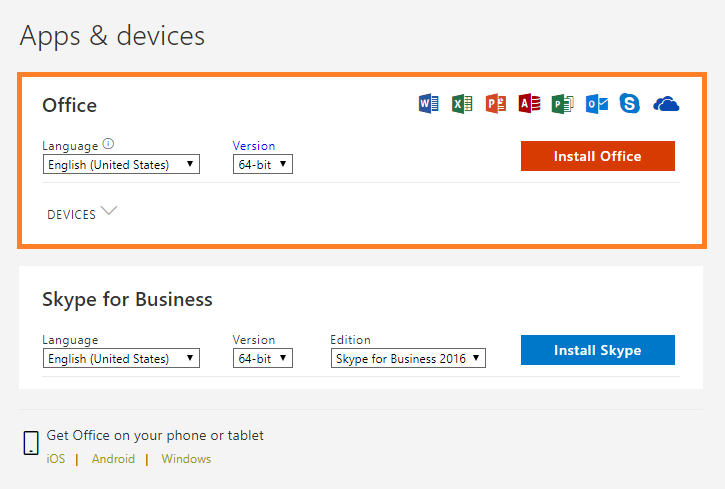
1. Sign in with your work or school account at https://portal.office.com/OLS/MySoftware.aspx.
Note: If you don’t see Office listed, your plan probably doesn’t include Office applications. If you know your plan includes Office, you may not have a license assigned. See What Office 365 product or license do I have? If Office is not listed, ask your Office 365 administrator to assign a license to you.
2. On the Office page, set-up which version of Office 2019 you want to install. By default, the 64-bit version is selected. You can change this by clicking on the drop-down box under Version.
IMPORTANT: The process that installs Office 2019 also uninstalls all Office 2016 products. If you previously have the 32-bit version of Office installed, you should first uninstall this version before upgrading to the 64-bit version.
If you’re not sure which version you currently use, have a look at What version of Office am I using? or if you’d like to know which version you should install, read on Choose between the 64-bit or 32-bit version of Office.
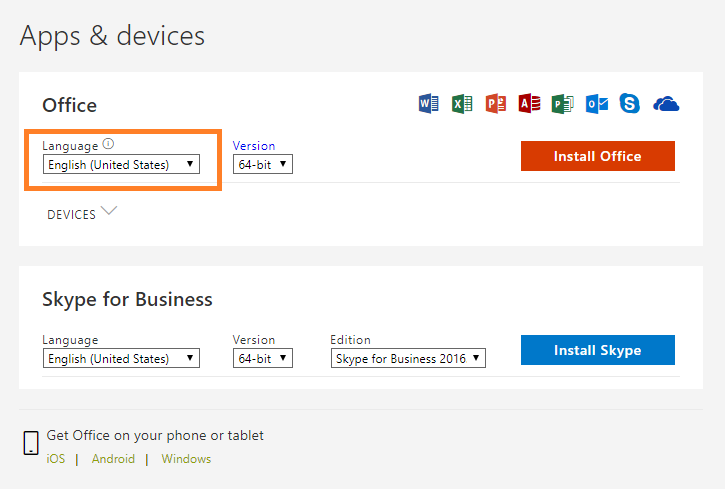
3. Select a preferred Language from the drop down list under Language.
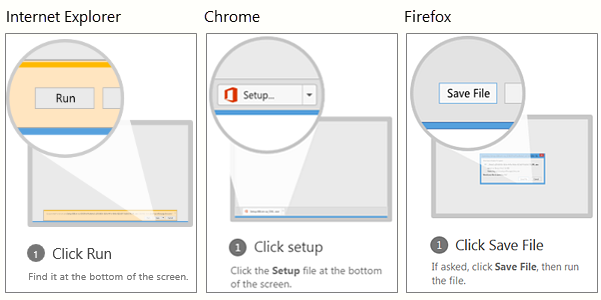
NOTE: If you’re using Edge, first click Save, and then click Run.
If you see the User Account Control prompt that says, “Do you want to allow this app to make changes to your device?” Click Yes.
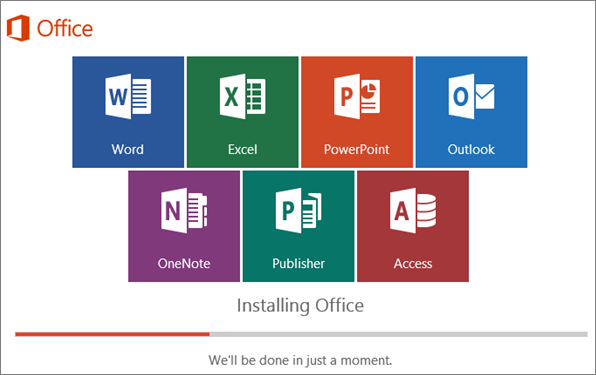
6. The install begins…
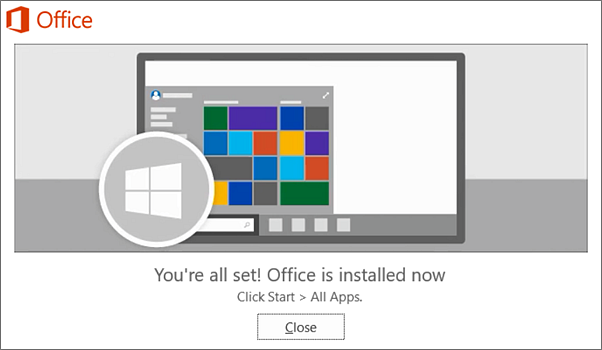
7. Your installation of Microsoft Office 365 is finished when you see the phrase, “You’re all set! Office is installed now”and an animation plays to show you where to find your Office applications on your computer. Follow the instructions in the window.
For example Click Start > All Appsto see where your apps are, and select Close.
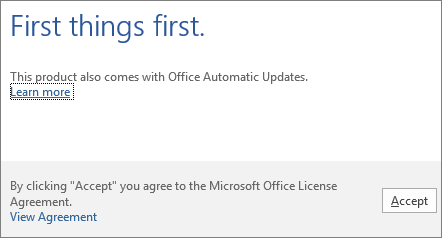
8. Start using an Office application right away by opening any app such as Word or Excel. In most cases, Office is activated once you start an application and after you agree to the License terms agreement by clicking Accept.
Now you’re ready to use Office 365!
If you’re curious as to how other successful businesses utilise the Office 365 suite to the best of their advantage, you can head to one of our free webinars by clicking here or if you’re looking for new features and new ways to work your way around your freshly installed Office 365, click here.
Right when you need professional assistance in your Office 365 journey, we’d be glad to be there and help! Just reach out to us and let’s talk about how you can make the most out of your Office 365.
Are you ready to get solutions that drive positive change to your business? Reach out to us to know more about how we can build these solutions together.
There is one app on my iPhone that I now simply cannot live without. The app is called Office Lens and it is available for free at the Apple App Store and for your Android phone on Google Play.
In a nutshell, the Office Lens app is a portable scanner in your pocket. Now, these kinds of apps aren’t new. You have Evernote, Scanbot and no doubt a variety of other flavours available to you on your Smartphone but where Office Lens shines is in its tight integration with the Office 365 suite.
If you are rocking Office 365, odds are that you already enjoy the mobility and agility of access to all your documents and productivity applications from anywhere on your phone. Here is another tool in your toolbox to get the most out of the modern workplace.
Here are just some of the ways that I have personally used Office Lens in the past few weeks:
I have been fortunate to attend some fascinating road shows hosted by cloud companies who are making fantastic presentations up on the big screen. Problem is, you’re often seated at a weird angle off to the side, right? You will see people snapping pics of the big screen at these kind of events, which is a great way of capturing the information. But, if you are using Office Lens, the image will automatically identify, keystone (correct the angle of the image for ease of viewing) and save with an optimised image where you can store it away in a OneNote file to annotate and comment so that you can more easily document and retain all of the cool stories on display.
Collected a pile of business cards at that networking event? Snap them in Office Lens and the app will automatically identify the printed text with optical character recognition (OCR) and generate contacts that you can add right into your phone. Handy.
When compiling expenses, having to dig out all those paper receipts can be tedious. Instead of being monopolising the office scanner in a scanning marathon, Office Lens enables you to snap a photo with your phone at the time. Office Lens will automatically crop, enhance and clean up the image and export it to your OneDrive as a PDF document ready to attach to your expense claim. Job done.
Sounds good, right? But how do you do it?
Have you given Office Lens a run yet? I’d love to hear how you are using it in your business.
Have you ever experienced that sinking feeling as you realise you have accidentally sent an email to the wrong person?
If you are lucky, it could just be an embarrassing blip on your day, but there is the potential for some very real damage. There is the occasional story on the news, for example the story about the insurance company that accidentally sent out an email dismissing its entire workforce, instead of just firing “Terry from Accounts.”
So yes, sending an email to the wrong person or group can be embarrassing. Fortunately, there are measures you can take to prevent such disasters.
Yes. There are measures that you can take to avoid the embarrassing debacle but regardless of the technology, just like it is with cybersecurity the first line of defence should always be you.
In all cases, you should read the “To”, “CC” and “BCC” fields before you click on that Send button. Check what attachments are in the email and give the content in the body a once over. In fact, maybe write the email first and THEN add the addresses carefully at the end. And then double check that you’ve selected the correct email addresses.
Beware of that ever so helpful feature in Outlook where it autocompletes the address! I was once injected into a river of emails between the management team of a retailer containing discussions about stuff that I really had no business knowing after an employee had unwittingly rapped out “Gary” on their Address field. Even after advising them, I continued to receive emails for some time.
Always proof read your emails.
A very wise manager I once worked with had an excellent tactic to protect himself against the risk of the wayward email. He would set a rule in his Outlook to delay the transmission of his emails and allow himself some time to review and reflect before he pulled the trigger.
It’s not hard to do, and it can help you from some potential bad news be it an email launched into the wrong inbox, or an email to the right inbox that was banged out in haste.
Let’s guide you through how to do it, step-by-step.
How to set a rule to delay emails
1. While composing your message on Outlook, go over the Ribbon and click on the Options
2. Under the Options tab, click Delay Delivery
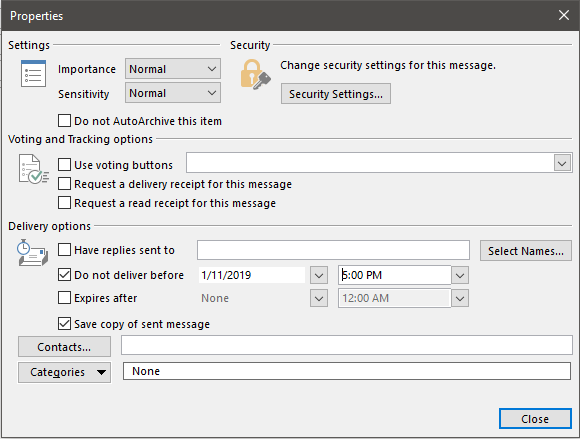
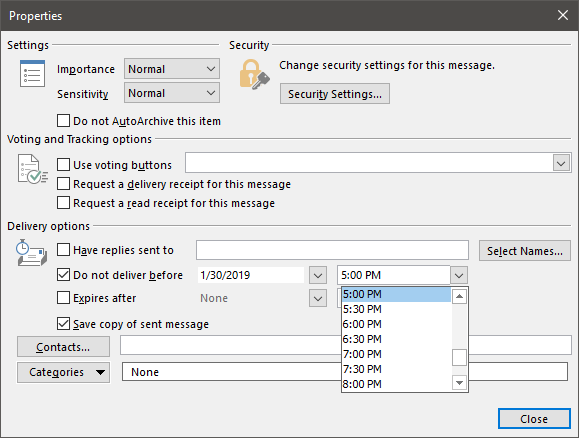
3. A new window will appear with the delivery properties of your message. You’ll want to go over to the Delivery Option section
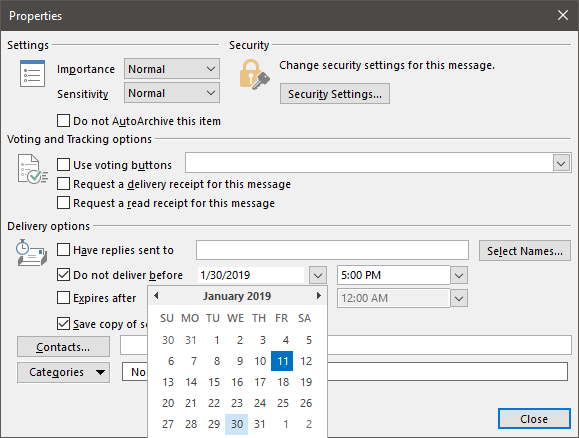
4. Under Delivery Options, pick a date from the date picker of until when you want to delay your email delivery
5. After choosing a day on when your email will be delivered, pick a specific time to send it out
6. Close the window by clicking the Close button on the lower right part
So, you have checked and double checked, and your email is sitting there in the ‘Sent’ tray.
You can try to recall the message from the recipients by using the Recall This Message feature in Microsoft Outlook. This lets you recall, replace or delete the messages sent.
The success or failure of a message being recalled depends largely on their mail system and settings and whether they want to let you recall it, which is probably the single best reason why this method is probably not the best one to use. There’s also the fact that recalling a message will generally inform the recipient that the email exists and highlight the fact that you want to recall it.
You can think of it like stopping a bullet in flight. This is one of your last resorts.
1. From your Sent Items folder, double click the email you’d like to recall.
2. Click on the Actions icon
3. From the Drop-down menu, click on Recall This Message
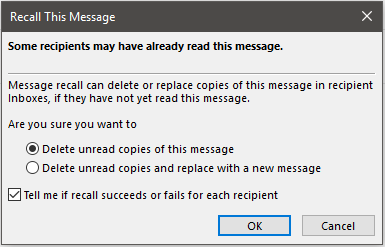
4. A dialog box would then appear to confirm how you want to recall your email
5. You can choose whether you’d like to receive notifications about your recall and track its activity.
6. Close the dialog box by clicking Ok
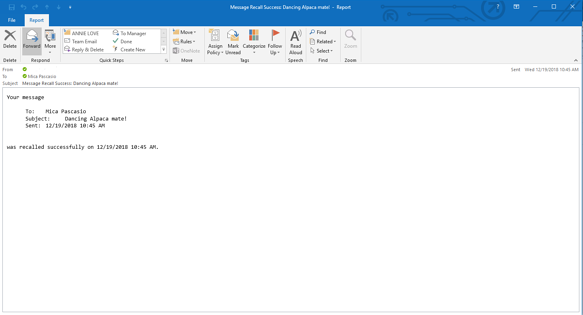
7. If you chose to get a notification, you should get an email confirming that the recall process was a success. It should look like this:
Email disclaimers inform recipients about what they can and cannot do with the emails sent from your organisation. In fact, in North America and Europe having an email disclaimer is now a legal requirement, in Australia it’s simply a matter of good sense.
For sensitive emails, it’s advisable to include a message that states for whom the message is intended and that sharing the content is strictly forbidden. For wayward emails to the random public, a humble request to inform the sender in case the message was intended for someone else will often work.
Here at Grassroots IT we use an excellent tool called Exclaimer! for helping to manage and control the email signatures. It means that we can have a consistent branding for all our email communications and focus on what we like to do, which is to help you do your best work possible through the best possible use of technology. It also means that we can add in and adjust information like disclaimers whenever we need to.
Recalling emails in Outlook is possible, but we recommend it as a last resort. Check, check and recheck before you send – especially if the topic is a bit controversial or includes highly private and confidential information.
For most of us, the goal of achieving Inbox Zero (“a rigorous approach to inbox management, aimed at keeping the inbox empty”) is not an easy task to work on. It’s just a lot to have to go through tons of emails from who-knows-when with the goal of clearing up unwanted emails from your Outlook Inbox then, as soon as you finish halfway through your emails, you start to realise that newer ones are replacing those that you have just removed. So what the heck is the point?
Well, what if I tell you that there’s a way to reduce the amount of redundant emails sitting around your Inbox?
Enter, Microsoft Outlook. There is a feature within Outlook called Conversation Clean Up that helps in clearing out unwanted emails by evaluating the contents of your email conversations. From there, it eliminates any emails with redundant content from previous conversations.
“What the what?!” You might think. Here, let’s go through it in more detail
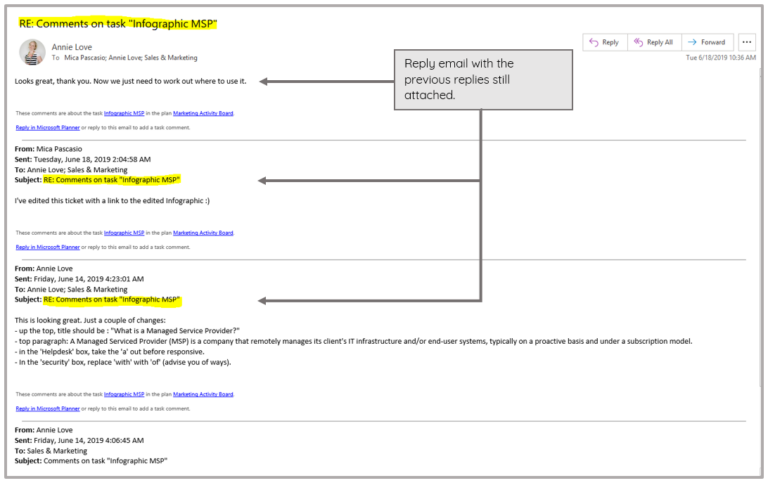
Does an “email thread” ring a bell? Well that is the quickest definition of an Outlook Conversation. “A Conversation is the complete set of email messages from the first message through all responses. The messages of a Conversation have the same subject.” (source: support.office.com)
Here’s an example, If I send an email to you, then you send me a response with MY original email still attached to YOUR reply then that, my friend, is a Conversation. Here’s a sample image to draw a clearer picture:
This tool is most helpful with your emails that contains a lot of ping-pong responses, especially those with many recipients. Now, how do you utilise this cool Outlook feature?
“I’d like to remove redundant email messages.”
1. Open your Outlook desktop app.
2. Find one of your emails or email folder that has a lot of back and forth responses, open it.
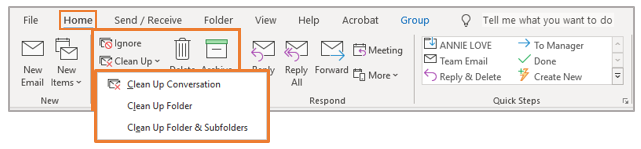
3. Go to the Home tab.
4. From the Home tab ribbon, find the Delete group.
5. Click on Clean Up (a drop down list will appear).
You can select one of the options from the drop-down list:
This is the option for when you want your current Conversation be reviewed, and redundant messages be deleted.
This option allows you to have all email messages in your selected folder be reviewed, and redundant messages be deleted.
This will allow you to have all email messages in your selected folder and its subfolders be reviewed, and redundant messages be deleted.
Not entirely. Once you’ve enabled the Conversation Clean Up on one of your emails, email folders and subfolders, detected redundant messages will be moved to your Deleted folder and not eradicated permanently. If you wish to recover some of the most recently removed emails, you could head to the Deleted folder to find them (although we don’t recommend using your Deleted folder as a storage option!). But remember that the redundant information should still be located in the email you are keeping, that hasn’t been ‘cleaned up.’
You can also set an exception for emails that you do not want to be moved out of your main Inbox. You can find more details on how you can customize your options in one of Microsoft’s support docos available on their page.
There are more ways than one for you to strategize your way to Inbox Zero without having to sacrifice loads of your precious time. Here are a few handy tips:
This may sound cliched but, “Time is Gold.” Especially if you’re running a business, you can’t afford to use up a day or give it an hour just to sort out your overflowing inbox to eliminate the unwanted ones. Ideally, if you make deleting (and unsubscribing from promotional emails you no longer read) a regular habit, it’s less likely you’ll need to deal with tons of emails when you next face your inbox.
Do you feel guilty and anxious when asked to get rid of an old email you’re afraid you might need someday because it has a file attached? Just download all the files and links from emails that you find important so they are safely retained, then delete the email. Magic.
Besides the Conversation Clean Up Tool, there are a lot of tools in Outlook that can help you clean and organise your inbox. You just have to start exploring your Outlook ribbon or head to the handy Outlook help website for more ideas. Or seek for the assistance of your trusted IT partner who can give you pointers on where to find the handy tools.
Like your rubbish at home, you wouldn’t want to keep it hidden under the sink for too long. Once you’ve read an email that can be deleted or you’ve finished a conversation, make sure to get rid of it right away to prevent it from being buried under newer emails that will later on make it harder to find.
Inbox Zero can be a lofty goal, but not unachievable. A daily habit of action to remove unwanted emails and the use of handy tools like Conversation Clean Up can help you keep on top of inbox clutter.
People do business with people, so your profile picture is a great way to represent you and your business. Whenever you send an Outlook email to your contacts, a little circle icon of you should be visible to the recipient and it should be something striking. Who wouldn’t want to look good in their email profile picture, right?
The members of your organisation would appreciate it if they can easily identify you in online collaborations and communication within Office 365. To maintain a personalised touch to your account, you should consider updating your profile picture and we can show you how to do that.
Here’s a video tutorial of how you can easily change your profile photo in Office 365 online:
Here’s another short and simple way to do it:
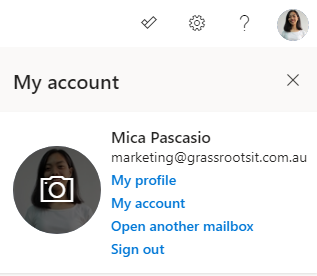
1. Find a little circle at the top of the page. That’s where your photo is supposed to be, select it.
2. A list of options will appear, hover over the profile photo where you will see a camera icon. Click on it
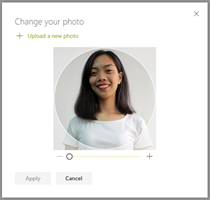
3. A window will appear. Select +Upload a new photo
4. Select your favourite photo from your file folders. Click Open
5. After choosing a photo to use, click Apply
6. Select Done
To recap the steps:
If you would be needing more help with your Office 365 account, contact your reliable IT partner or don’t hesitate to reach out to us. The #nerdherd would be glad to assist.
Are you ready to get solutions that drive positive change to your business? Reach out to us to know more about how we can build these solutions together.
Many businesses are already enjoying the benefits of cloud-based VoIP PBX systems alongside Microsoft Teams. By replacing your existing phone system with Teams Phone (previously known as Teams Calling), the communications experience is unified and simplified into the familiar Teams platform while maintaining professional features and user experience.
Teams Phone is a 100% cloud-based VoIP phone system built right into the familiar Microsoft Teams application, allowing you to make phone calls using Teams. For organisations using Microsoft 365, Teams will already be a familiar tool for collaborating with colleagues via chat, voice, video and shared files. With the additional of Teams Phone users can now make and receive phone calls using the same familiar Teams application, rather than having yet another separate application for phone calls.
Teams Phone is the next evolution of business voice telephony, unifying cloud telephony in the familiar Teams environment. There are many advantages not only over traditional PBX phone systems, but also over other VoIP and cloud-based PBX systems.
Because it is a 100% cloud-based platform, supporting a diverse and remote workforce is easy. Staff can not only work from any location, but moving between locations is seamless. As modern working arrangements increasingly see staff sharing their work hours between home and office locations, this helps them stay in touch wherever work takes them.
Multiple offices have traditionally meant multiple separate phone systems. By using Teams for all of your phone calling, you can bring all offices together for a seamless user experience and improved customer service, breaking down the limitations of geographic separation to unite teams across locations.
Organisations using Teams Phone can easily operate a single customer service team spanning multiple locations, whether this be a single receptionist answering calls for different offices or a large team of specialists providing technical support.
Because Microsoft Teams can truly operate on any device, from any location, so too can Teams Phone. Users can choose to make and receive phone calls on any iPhone or Android device, computer or even a physical telephone handset. For example, a salesperson using their computer headset to make calls from their desk will still be seamlessly contactable via the Teams client on their iPhone while on the road.
Many organizations already enjoy the benefits of Office 365 and Microsoft Teams for team communication and collaboration. By bringing multiple services and channels such as chat, video calling, file management, document co-authoring and phone calls into a single unified environment, users will have rapid access to the people and resources they need, with minimal context switching between different systems and platforms.
Microsoft Teams Phone integrates seamlessly with Microsoft Power BI for advanced business intelligence reporting and analytics. By using Power BI to report on your telephony usage across the organisation, you will be able to identify opportunities to improve customer service, streamline processes and reduce costs.
The Microsoft Teams telephony solution allows your monthly costs to flex up and down as your business needs change over time. The necessary licenses operate under the same model as other Microsoft 365 licenses, meaning that you can add and remove licenses as you add and remove staff.
Yes. Because Teams Phone is a 100% cloud-based business PBX phone solution capable of supporting small teams all the way to thousands of users, many businesses have replaced legacy PBX and VoIP phone systems and are now using Teams calling rather than legacy calling platforms.
Teams Phone supports all common PBX functionality including:
Yes. Through a process called Number Porting it is possible to keep your existing phone numbers. Number Porting is the process whereby your existing phone numbers are moved from your old telephony provider to a new provider. This process can be complex and needs to be closely managed as part of your implementation in order to avoid disruption to your ability to receive phone calls.
Although the most common way to use Teams Phone is with a headset connected to your computer, you can also use the Teams mobile app on your iPhone or Android device, or with a more traditional physical telephone handset from brands such as Yealink.
In practice physical handsets are most common in shared-use scenarios, such as in a staff lunchroom or a conference phone in a boardroom.
For those users with multiple devices such as an iPhone and a physical handset, Teams will allow them to transition effortlessly between the two without missing a beat.
As with all other Microsoft Office 365 services, licensing is on a per-user basis. In addition to their standard Microsoft Office 365 license, each user will also need either a Phone System or Business Voice license costing around $11 per month.
With all users properly licensed to unlock phone features you will also need a calling plan or SIP lines to carry calls between Teams and the traditional telephone service providers. Costs can start as low as $5 per month, however, will vary widely depending on several factors such as how many concurrent calls you need to support, and whether calls are included, or charged on a usage basis.
Finally, you may have other costs to consider such as inbound number ranges, and once-off porting costs to bring existing number ranges into Teams.
Teams Phone is an excellent extension to the features already available in Microsoft Teams, with its ability to replace a traditional phone system, support a remote workforce, use any device, unify communications channels and its flexible pricing model. Learn more about how Grassroots IT can help with Teams Phone today.
Email has long been the mainstay of team communication and collaboration. Indeed, despite also being the bane of effective collaboration, for many organizations it remains at the heart of how teams communicate and work together.
Part of the Microsoft 365 suite of cloud services, Microsoft Teams is the modern alternative to email, enabling clear, efficient and effective communication and collaboration both with internal teams and external partners. Here are five key reasons why you should use Microsoft Teams instead of email for team collaboration.
Emails are addressed directly to one or more people, meaning that not only do you run the risk of excluding someone who may be valuable to the discussion, but you will also likely be clogging up the inbox of people who don’t really need to be involved. With Microsoft Teams, discussions can be seen by everyone in the team, without actively intruding into their work or cluttering their inbox. People can then choose to contribute to the discussion if they have something useful to add, otherwise they can simply remain aware of the conversation without engaging. Such open communication helps to keep everyone in the loop with team activities while encouraging teamwork and knowledge sharing.
We all have a constant stream of emails landing in our inbox, whether they be ongoing discussions, new inquiries or perhaps threads we are simply cc’d on to keep us ‘in the loop’. We can do our best in Outlook to create subfolders and rules to try to stay organized, but inevitably the flood of emails all demanding our attention brings distraction and overwhelm.
With Microsoft Teams, collaboration happens in the proper channel, keeping all communication and files naturally grouped, organized and structured without other unrelated matters muddying the water. For example, here at Grassroots IT we have a channel in Teams dedicated to collaboration around our marketing content, and another dedicated to priority 1 client emergencies. As you can imagine, if our staff are focused on a client emergency, we don’t want them being distracted by discussions about blog posts!
An email discussion will only remain organized if one person replies to the most recent message at a time. In a group discussion though this rarely happens, with multiple people replying separately to the same message, instantly creating a ‘fork’ in the thread, each of which can quickly spin off into a separate conversation and fork again. Keeping track of which conversation is which can be challenging and destructive to team collaboration.
In Microsoft Teams all discussion threads can be seen in real-time by all members, making it easy and natural to keep a single thread focused, and to recognize when a new, separate conversation should be started.
You may have stepped away from your email for an hour at lunch, or a week for a well-earned holiday, but in either case coming up to speed on an email thread you missed can be an all or nothing proposition. You either have dozens of emails with multiple threads to piece together, or you’ve been cut out of the loop altogether and need someone to actively bring you up to speed.
Microsoft Teams keeps a fully searchable history of all discussions for the life of the team. Need to quickly catch up on the progress of an issue? No problem, just search the channel and instantly discover everything that’s been discussed and shared.
Collaborating on a document via email is a nightmare scenario for many. A single emailed attachment to a group of collaborators and you instantly have multiple copies of the same document in play. One person updates the document and emails it back to the group; so does another person. You now have multiple different versions being worked on. So which version is correct?
Since Microsoft 365 allows app integration, files shared in Microsoft Teams are automatically saved to the channel’s SharePoint library, where all team members can access and edit the same copy of the file simultaneously, all while adding comments and discussing the document in real-time. Version conflicts are a thing of the past.
While email certainly has its place in business, Microsoft Teams is a better platform for team collaboration and communication for five main reasons: promoting open communication and teamwork, reducing distractions and maintaining focus on the right places, eliminating ‘forked threads’ in conversations, the ability to search the conversation thread easily, and keeping a single source of truth when it comes to attachments and documents. Not only that, but Microsoft Teams is constantly evolving and improving – to keep up to date with the latest updates to Teams, read more on the Microsoft website.
The Microsoft Power Platform is the collective term for four Microsoft products: Power BI, Power Apps, Power Automate and Power Virtual Agents. More than the sum of its parts, the Power Platform is a no-code to low-code platform that users with no coding experience can use to analyse data, build solutions, automate processes and engage online.
Although perfectly at home integrating with third-party apps, the Power Platform truly shines when used with your Microsoft 365 subscription, and being a low to no code platform means it can be used without the need to rely heavily on IT or coding experts.
Power BI is a cloud-based data analytics and visualisation tool used to bring together data from a wide range of sources to provide business intelligence and insight beyond merely data reporting.
Power BI allows users to create a visualized view of data to deliver easily digestible reports and dashboards, bringing a whole new experience to data reporting of complex analytics. Powerful API capabilities are available in Power BI, enabling integration with a vast array of applications and data sources.
One of the most compelling benefits of Power BI is the ability to combine multiple data sources into a single dashboard. For example, you could combine client demographic information from your marketing platform (eg: Mailchimp or HubSpot) with financial information from your accounting system (eg: Xero) and plot the resulting information on a map of Australia, offering new insight into where your most engaged and profitable clients are located.
The Power Apps platform enables no-code creation of desktop and mobile applications by both developers and non-developers alike. This enables your business to creatively build powerful applications to solve everyday challenges without the need for heavy coding skills.
Even though Power Apps runs on a simple drag-and-drop interface to allow for low-coding app development, more advanced features and capabilities are available for more experienced app developers to utilise. Power App capabilities can be further extended with Microsoft Power Automate and Azure Functions and the ability to connect to third party connectors and integrated apps.
Formerly known as Microsoft Flow, Power Automate lets you create an automated environment with workflows so you can have a faster way of tackling daily tasks that you would have otherwise handled manually. No heavy coding skills are required. You can choose from a set of pre-defined templates to start your automated workflow but, if you’d like to start from scratch, you can do that too.
The simple drag-and-drop interface allows for an easy build of automated workflows that work by customising desired triggers and subsequent actions (e.g. emails, push notifications, chat alerts, etc) to follow.
This means less time, effort and resources being spent on repeat manual processes that can be automated, as well as reducing the risk for human error in these processes. If you have two or more existing applications that require manual human involvement to share information and activities, Power Automate can automate that for you.
Related: 3 Short Automation Case Studies to Inspire Your Thinking
Power Virtual Agents is a bot building service for businesses that allows for no-code automated chat bot agents. With its drag-and-drop GUI, users can build the entire chatbot development cycle and integrate with chat channels like Teams and automated workflows from Power Automate to trigger job completions.
Power Virtual Agent chat bots can be used in a range of situations such as responding to client queries on your website or providing information and guidance to staff on an internal platform.
What applications can integrate with Power Platform?
There are quite literally hundreds of applications and data sources that the Power Platform can integrate with. As part of the Microsoft ecosystem, extensive integration is available with other Microsoft apps, as well as those in the Microsoft 365 suite, such as SharePoint and Teams.
Numerous third-party app integrations are available, including Salesforce, Dropbox, Xero and Slack. For apps without any native integration with the Power Platform, custom APIs, data gateways and robotic automation provide powerful connectivity options for almost any situation.
Pricing for the various Power Platform apps and features can vary depending on the Microsoft 365 plan that you already have in place, and which specific Power Platform elements you need. For example, Power Automate is included at no extra charge with many Microsoft 365 plans, however this free version may not have the ability to use what are called ‘Premium Connectors’ without adding on a paid license.
When developing a Power Platform solution, it’s important to consider what the ongoing licensing costs are likely to be. In some cases, it may be possible to create your solution on free, or cheaper licenses, however this does need to be considered during the development process.
Although each of the four products included in the Microsoft Power Platform serves a different purpose, they truly shine when used together across multiple business processes.
You can take advantage of Power Apps to build simple business applications, harness the benefits of automated processes with Power Automate, analyse your data in an easily digestible way with Power BI and engage with your community using automated chatbots with Power Virtual Agents – all without the need for heavy coding or software development skills.
If you would like help bringing a Power Platform solution to life, contact us today.
