
Remote work has become more than just a trend: it’s now a fundamental part of how many Australian businesses operate. While this shift brings numerous benefits, it also presents new challenges in data security. With team members accessing sensitive information from various locations and devices, how can you ensure your data remains protected? This is where Data Loss Prevention (DLP) becomes crucial.
Remote work has expanded the traditional network perimeter, making it more difficult to control and monitor data access and movement. Your team members might be working from home in Brisbane, from a client’s office in Sydney or a cafe in Melbourne. They’re likely using a mix of company-issued and personal devices, connecting through various networks of varying security levels.
In this distributed environment, the risks of data leaks, both accidental and intentional, increase significantly. An employee might inadvertently send sensitive information to their personal email for easier access or to save confidential documents to an unsecured cloud storage service. Without proper safeguards, your valuable business data could be exposed to unauthorised access or breaches.
DLP is a set of tools and strategies designed to detect potential data breaches and prevent them by monitoring, detecting, and blocking sensitive data while in use, in motion, and at rest. In a remote work context, DLP becomes your virtual security guard, ensuring that your data is protected regardless of where your team members are located.
Let’s consider a mid-sized engineering firm based in Brisbane. With their team of 50 now working remotely, they implemented a DLP solution to secure their client data and creative assets. Here’s how they approached it:
The (hypothetical) result? In the first month alone, the agency prevented several potential data leaks, including an instance where a new employee almost sent a confidential client brief to their personal email. The system not only blocked the transfer but also educated the employee about the proper protocols for handling sensitive information.
As remote work continues to be a significant part of our business landscape, protecting your data has never been more crucial. DLP provides a powerful set of tools to secure your sensitive information, regardless of where your team members are working from. By implementing a well-thought-out DLP strategy, you can enjoy the benefits of remote work while maintaining the security of your valuable business data.
Are you unknowingly overspending on your Microsoft 365 licences? You’re not alone. But the impact of poor licence management goes far beyond just your bottom line.
As IT professionals, we’ve observed that licence management is often overlooked, despite its significant impact on a company’s operational efficiency, security posture, and overall productivity. Let’s explore why this matters and how proper management can benefit your business.
Here are 4 common ways businesses mismanage their Microsoft 365 licences:
It’s crucial to understand that effective licence management isn’t just about minimising costs. It’s about optimising your Microsoft 365 environment to align with your business needs and strategic goals. Here’s why it truly matters:
Proper licence management doesn’t need to be onerous, but it does require ongoing attention, expertise, and strategic planning. It’s about understanding your current needs, anticipating future requirements, and aligning your licensing strategy with your broader IT and business goals.
If you’re not actively managing your Microsoft 365 licences, you’re likely missing opportunities for cost savings, operational improvements, and enhanced security. More importantly, you may be compromising on tools that could drive your business forward in an increasingly digital world.
The first step towards improved licence management is to understand what licences you currently have in place. This is easily done from within Microsoft 365 Admin, or by asking your IT team to produce a report for you.
From there, you can review your current licence assignment against actual usage and business needs. This will help identify any discrepancies, such as overprovisioning or inactive licences still assigned to former employees.
At Grassroots IT, we believe that technology should be a strategic enabler for your business. Effective licence management is a key part of this strategy. It ensures you’re getting the most value from your Microsoft 365 investment, both in terms of cost-efficiency and operational capability.
Ready to stop overspending and start optimising your Microsoft 365 environment? Let’s have a conversation about how we can help you align your licences with your business needs and goals, ensuring you’re not just saving money, but setting your business up for future success.
You’ve likely heard buzzwords like “cloud services” and “mobile device management” floating around, and perhaps “Microsoft Intune” has come up in conversations with your IT provider or tech-savvy colleagues. But what exactly is Intune, and why should you care about it? Let’s break it down in plain English, so you can understand how this tool might benefit your business: without needing a degree in computer science.
Microsoft Intune is a cloud-based service that helps businesses manage their devices and applications. Think of it as a central control panel for all the phones, tablets, and computers your team uses for work. It’s part of Microsoft’s broader suite of business tools, integrating with other Microsoft 365 products, and is rapidly becoming a core part of how many businesses manage their IT systems.
Intune’s capabilities can be broken down into three main categories: Device Management, App Management, and Security.
Intune gives you control over how company devices such as laptops are used. With Intune, you can set password requirements to ensure all devices have strong, secure passwords. You can control which apps can be installed, preventing potentially harmful or unproductive apps from being used on work devices. Intune also allows you to configure device settings, setting up email, Wi-Fi, VPN, and other settings automatically. Perhaps most crucially, if a device is lost or stolen, you can remotely wipe data from it, protecting your company’s sensitive information.
When it comes to apps, Intune is your central command centre. You can push necessary apps to all devices, ensuring everyone has the tools they need to do their job effectively. Intune also allows you to control which apps can access company data, keeping your sensitive information safe. It can update apps automatically, keeping everyone on the latest, most secure versions. And when an employee leaves the company, Intune makes it easy to remove business apps and data from their device, protecting your intellectual property.
Security is paramount, and Intune has you covered. Microsoft Intune is a solution for managing and securing your organisation’s devices and data. It ensures that all devices are up to date with the latest security patches and updates, reducing vulnerabilities. Intune also integrates with Microsoft Defender and other security products, creating a comprehensive security ecosystem. By enforcing policies such as data encryption and remote wipe, Intune protects sensitive information even if a device is lost or stolen. Additionally, it links with Entra ID to manage multi-factor authentication and conditional access policies, preventing unauthorised access to company resources. With Intune, you can confidently safeguard your business data against a wide range of security threats.
Now that we understand what Intune does, let’s talk about why it matters for your business.
Intune offers flexibility, working with both company-owned devices and personal devices in a Bring Your Own Device (BYOD) environment. This means you can secure your data whether your team is using company laptops or their own smartphones.
Simplicity is another key benefit. Instead of your IT team dealing with each device individually, they can manage everything from one place. This can save significant time and reduce headaches.
Security is a major advantage of Intune. It allows you to protect your business data without making life difficult for your team. Intune’s security features work in the background, allowing your team to focus on their work rather than wrestling with cumbersome security protocols.
Productivity gets a boost with Intune. By ensuring your team has the right tools and access, wherever they’re working from, Intune provides access to business resources while maintaining control.
Finally, Intune can be cost-effective. By managing devices and apps centrally, you can often reduce your overall IT costs and simplify budgeting.
Intune can be particularly useful in several scenarios. If you have a mobile workforce that works from various locations or uses multiple devices, Intune can help keep everyone connected and secure. If you’re concerned about data security (and in this day and age, who isn’t?), Intune provides security features to protect your business data.
If you’re tired of hearing about individual device issues and want to simplify your IT management, Intune can simplify your processes. If you’re already using other Microsoft 365 products, Intune integrates, creating a cohesive ecosystem. And if you’re supporting a bring-your-own-device (BYOD) environment, Intune allows you to secure company data on personal devices without infringing on employee privacy.
Related: Securing Your Remote Workforce with Entra ID and Intune | Grassroots IT
Let’s consider a scenario to see how Intune works in practice:
Imagine you run a small marketing agency with 20 employees. Half of your team works in the office, while the others work remotely or at client sites. Some use company laptops, others use their personal devices.
With Intune, you can ensure all devices (company-owned and personal) that access business data have the necessary security measures in place. Your team can easily access the apps and data they need, whether they’re in the office or at a client site. If someone’s device is lost or stolen, your IT team can quickly remove business data from that device. When you onboard a new employee, they can automatically set up the device with all necessary apps and settings. And if an employee leaves, they can remove business apps and data from their device without touching their personal information.
Microsoft Intune is a powerful tool that can help simplify your IT management, enhance your security, and boost your team’s productivity. While it may seem complex at first, the benefits it brings to your business can be significant.
Remember, good IT shouldn’t give you headaches: it should solve them. Intune is just one of the many tools that can help make your business technology work for you, not against you.
At Grassroots IT, we’ve been helping businesses like yours leverage tools like Intune for nearly two decades. We understand that every business is unique, and we’re here to help you navigate the world of modern IT solutions. Whether you’re ready to implement Intune or just want to learn more, we’d be happy to chat about how it could work for your specific needs.
Technology should be an enabler for your business, not a barrier. Let’s work together to make sure your IT is helping your business thrive.
Managing the lifecycle of users and devices is a critical aspect of IT operations. From the moment a new employee joins your organisation to the day they leave, and from when a device is first enrolled to when it’s retired, there are numerous considerations involved in maintaining a secure, efficient, and productive IT environment.
Two powerful tools in the Microsoft 365 suite can help streamline this process: Entra ID (formerly Azure AD) and Intune. In this post, we’ll explore how these services work together to provide a comprehensive lifecycle management solution for your users and devices.
The journey begins when a new user joins your organisation. Entra ID facilitates this process through a series of steps:
To streamline this process, consider creating a standardised onboarding workflow that automates as many of these steps as possible. This approach not only saves time but also ensures consistency in how new users are set up across your organisation.
Remember, user onboarding is more than just technical setup. It’s an opportunity to make a great first impression and set new team members up for success. Consider incorporating steps like sending a welcome email, scheduling an IT orientation session, or providing a digital welcome pack with key information about your organisation’s IT practices and policies.
Once a user account is set up, the next step is often to get them set up with a device such as a laptop. This is where Intune shines, offering a range of enrolment methods to suit different organisational needs and device types.
For company-owned devices, Intune allows you to pre-configure enrolment profiles. This proactive approach ensures that devices are compliant with your policies from the moment they’re turned on, saving time and reducing security risks.
For organisations embracing Bring Your Own Device (BYOD) policies, Intune also supports personal device enrolment. In these scenarios, you can apply different policies that strike a balance between organisational security needs and user privacy.
It’s worth mentioning Windows Autopilot as part of the same discussion as Intune and Entra ID. Windows Autopilot simplifies the device setup process, making new devices ready to use with minimal IT intervention. Here’s how it works:
Autopilot is particularly useful for remote workers, as devices can be shipped directly to them, ready to use out of the box. This approach saves time for IT teams and ensures consistency across all devices.
Once users are set up and devices are enrolled, the focus shifts to ongoing management. This is where the true power of Intune and Entra ID’s integration becomes apparent, offering a comprehensive suite of tools for maintaining security, compliance, and efficiency.
Intune allows you to create and apply security policies to your devices. These policies can cover a wide range of security measures, including:
By applying these policies, you can ensure that all devices, whether company-owned or personal, meet your organisation’s security standards.
With Intune, you gain granular control over app deployment and management. You can:
This level of control ensures that your users have access to the tools they need while maintaining security and compliance.
Intune continuously monitors devices for compliance with your policies. If a device falls out of compliance, you can configure automated actions, such as blocking access to company resources. This real-time monitoring and response capability helps maintain your security posture without constant manual oversight.
As users’ roles change within your organisation, you can use Entra ID to adjust their access rights accordingly. This includes:
This dynamic access management ensures that users always have the right level of access for their current role, no more and no less.
Through the integrated use of Intune and Entra ID, ongoing management becomes a dynamic, responsive process. It allows you to maintain security and compliance while providing users with the tools and access they need to be productive. This balance of security and usability is key to a successful modern workplace strategy.
The integration of Entra ID and Intune provides a powerful solution for managing the entire lifecycle of users and devices in your organisation. From streamlined user onboarding to simplified device enrolment, and from ongoing management to comprehensive security and compliance features, these tools offer a holistic approach to modern IT management.
By implementing this integrated lifecycle management approach, organisations can:
Particularly in a world where remote work is increasingly common, and security threats are ever-present, such a comprehensive approach to lifecycle management is no longer a luxury. It is a necessity.
Whether you’re just starting your journey with Microsoft 365 or looking to optimise your existing setup, Grassroots IT is here to help. We can assess your current environment, design a tailored implementation strategy, and provide ongoing support to ensure your lifecycle management processes continue to meet your evolving needs.
The market has seen a fundamental shift in how businesses operate, with remote work becoming more than just a trend. While this flexibility brings numerous benefits, it also introduces new challenges in securing business data and maintaining a cybersecurity posture.
As your team members access sensitive information from various locations and devices, how can you ensure that your business data remains protected? Enter Microsoft Entra ID (formerly Azure AD) and Intune: two powerful tools that, when combined, provide a comprehensive solution for securing your remote workforce.
Before we dive into the solutions, let’s take a moment to understand the unique security challenges that come with remote work:
At the heart of securing your remote workforce is identity management. This is where Microsoft Entra ID shines.
Entra ID is a cloud-based identity and access management service that forms the backbone of security for Microsoft 365 and many other cloud applications. For securing and protecting remote workers, Entra ID offers several key benefits:
By implementing Entra ID, you create a strong foundation for securing your remote workforce’s identities and controlling access to your business resources. And the good news is, if you already have a Microsoft 365 subscription, you already have access to Entra ID.
While Entra ID secures identities, Microsoft Intune takes care of device and application management. Intune is a cloud-based service that focuses on mobile device management (MDM) and mobile application management (MAM).
Key features of Intune include:
With Intune, you can ensure that all devices accessing your business data, whether company-owned or personal, meet your security standards.
The real magic happens when you combine the powers of Entra ID and Intune. Together, they provide a comprehensive security solution for your remote workforce:
Securing your remote workforce doesn’t have to be a headache. With Microsoft Entra ID and Intune, you have a powerful combination of tools at your disposal to protect your business data, manage devices, and ensure compliance: all while providing an experience for your remote team.
By implementing these solutions, you’re not just reacting to the challenges of remote work; you’re proactively building a secure, flexible, and productive work environment for the future. You’re empowering your team to work from anywhere, without compromising on security.
Ready to take the next step in securing your remote workforce? At Grassroots IT, we’ve been helping businesses like yours handle IT security for almost 20 years. Get in touch today for a free consultation and let’s explore how we can help your remote team while keeping your data safe.
Limited resources, diverse stakeholder needs, and the pressure to demonstrate impact: all contribute to the complexity of non-profit operations and emphasise the critical need for efficient workflows. Fortunately, Microsoft 365 offers a suite of powerful tools that can help streamline processes, enhance collaboration, and boost productivity. Let’s explore five key Microsoft 365 tools that can transform how your non-profit works.
Microsoft Planner is a user-friendly task management tool that can significantly improve your team’s productivity. In fact, here at Grassroots IT we use Planner on a daily basis to keep team meetings organised and track actions & accountabilities.
Here’s how it can benefit your non-profit:
By using Planner, your non-profit can ensure that all team members are aligned on project goals, deadlines, and responsibilities, leading to more efficient project execution.
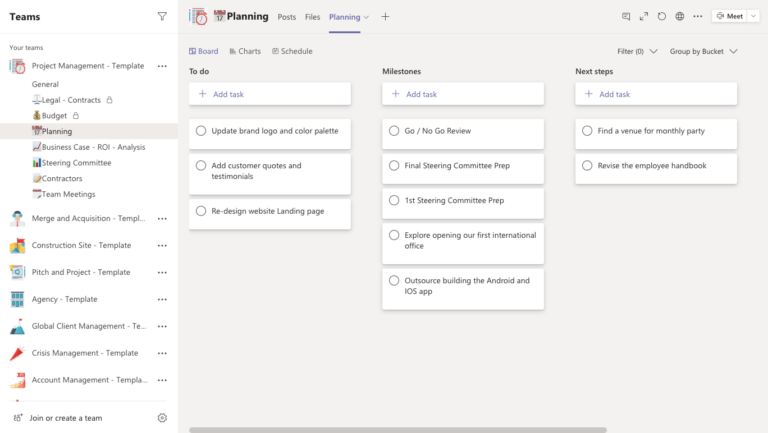
SharePoint is a powerful platform for document management and collaboration. Not only that, but in preparation for AI tools such as Microsoft Copilot, SharePoint is the person place to store company information. For non-profits, it offers several key advantages:
With SharePoint, your non-profit can improve information flow, reduce time spent searching for documents, and enhance collaboration across departments.
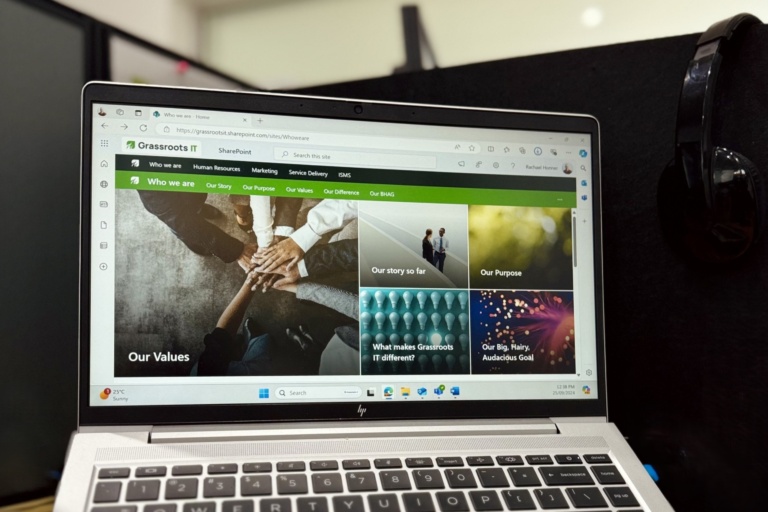
Microsoft Teams is a hub for teamwork, bringing together chat, video meetings, file storage, and application integration. At Grassroots IT with a diverse team spread across five countries, we rely heavily on Teams to keep our people connected.
For non-profits, Teams can:
By leveraging Teams, your non-profit can break down communication silos and create a more connected, collaborative work environment.

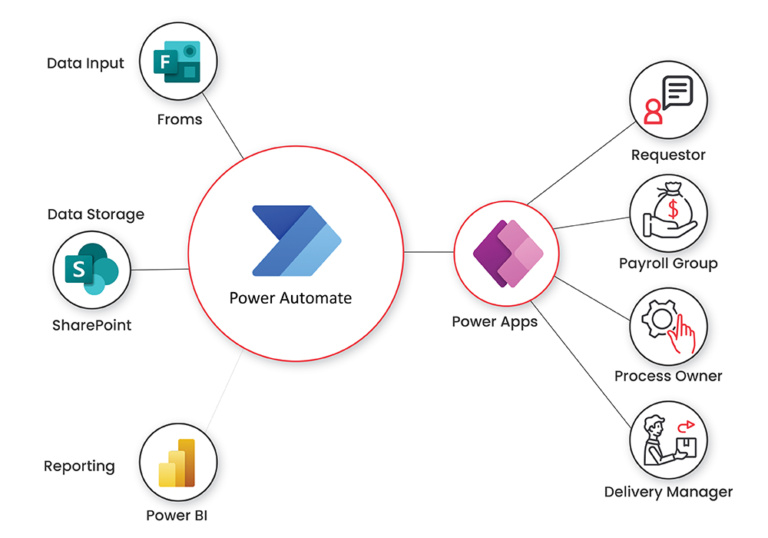
Power Automate (formerly known as Flow) is a powerful tool for creating automated workflows. Here’s how it can benefit your non-profit:
By automating routine tasks with Power Automate, your non-profit can free up valuable time for more strategic, mission-focused work.
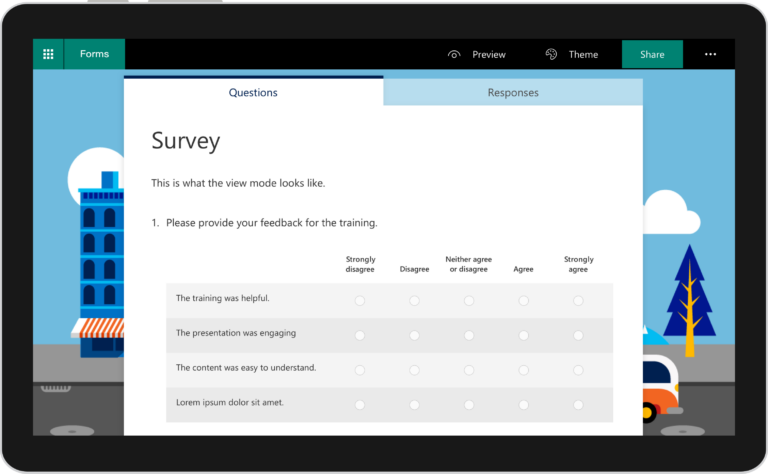
Microsoft Forms is a simple yet powerful tool for creating surveys, quizzes, and polls. For non-profits, it offers several benefits:
Microsoft Forms can help your non-profit gather valuable feedback, conduct needs assessments, or even manage event registrations with ease.
These five Microsoft 365 tools, Planner, SharePoint, Teams, Power Automate, and Forms, offer a powerful ecosystem to change your non-profit’s workflow. By leveraging these tools, you can enhance collaboration, streamline processes, and ultimately increase your organisation’s impact.
Remember, the key to success with these tools lies in thoughtful implementation and user adoption. Consider starting with one or two tools that address your most pressing needs, and gradually expand your use as your team becomes more comfortable with the new systems.
At Grassroots IT, we’re here to help you navigate the world of Microsoft 365 and find the best solutions for your non-profit’s unique needs. Reach out to us to learn more about how we can support your journey to a more efficient, tech-enabled workflow.
Microsoft 365 is the ideal platform to support and empower mission-driven nonprofit organisations, not least of all because Microsoft offers Microsoft 365 plans specifically designed for nonprofits. These plans are designed to provide the same high-quality technology and business tools that for-profit organisations use, but at a discount, making them accessible and affordable for nonprofits of all sizes.
Needless to say, there are requirements that your organisation must meet in order to qualify for access to Microsoft nonprofit resources. In summary, your organisation must meet three eligibility criteria:
There are also guidelines around which employees may use the licenses based on their employee status and role in the organisation. These guidelines draw a distinction between paid employees and volunteers and between Grants (free licenses) and discounted licenses.
You can read more about eligibility on the Microsoft website.
Finding the right Microsoft 365 plan for your nonprofit can appear confusing due to the multiple options available. In practice, it’s quite straightforward, and here we aim to simplify the process and guide you towards making an informed decision that aligns with your specific needs both in terms of functionality and budget.
Price isn’t everything, but as consumers, we often consider price before any other factor. So, as a quick start, let’s look at this handy table below to see how Microsoft 365 for nonprofit plans compare with one another on price, before moving on to consider features and functionality.
| License | $AUD ex GST | Notes |
|---|---|---|
| Microsoft 365 Business Basic (Charity) | 0 | Free up to 300 users |
| Microsoft 365 Business Standard (Charity) | $4.73 | |
| Microsoft 365 Business Premium (Charity) | $8.61 | Free up to 10 users |
| Microsoft 365 E3 (Charity) | $14.91 | |
| Microsoft 365 E5 (Charity) | $35.81 | |
| Prices are monthly, annual commitment, $AUD ex GST as at August 2025 |
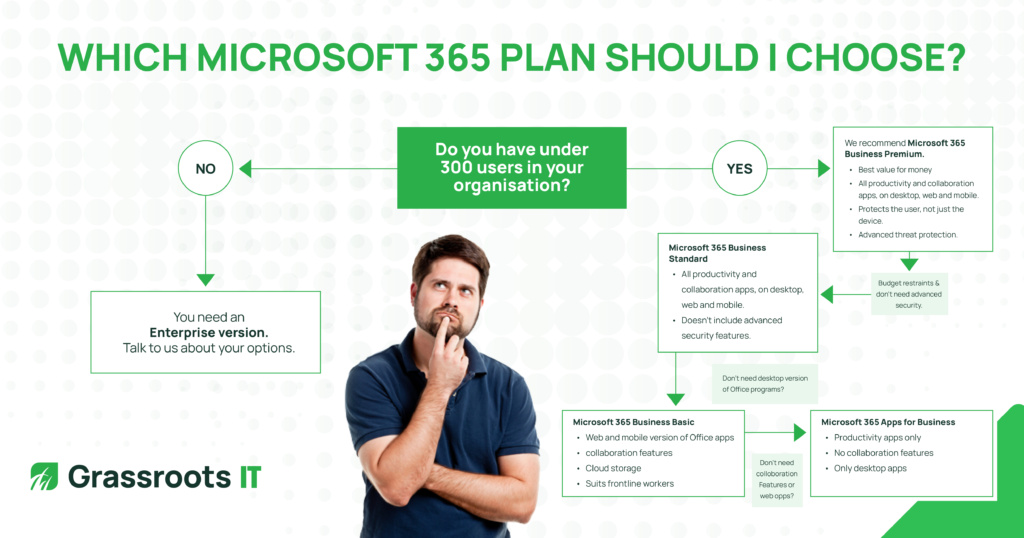
When deciding which Microsoft 365 plan is right for your non-profit, the first decision to consider is whether to choose a Business plan or an Enterprise plan. Thankfully this can be an easy decision for most, given that the Microsoft 365 Business plans support a maximum of 300 users.
Put simply, if you are a non-profit with more than 300 users, have a strong digital focus, require cybersecurity features, and solutions for compliance and governance, then the Microsoft 365 Enterprise Plans such as E3 and E5 will be the best fit.
On the other hand, if you are a non-profit with less than 300 users and looking to utilise the Microsoft 365 suite of business applications and are security conscious, then the Microsoft 365 Business Plans are your best option.
As a general rule of thumb for most nonprofit organisations (under 300 users) we recommend Microsoft 365 Business Premium due to the included features, primarily around cybersecurity & data protection.
Care-Full Services is a growing non-profit, currently with 43 staff, operating out of one office location with multiple staff working from home. Front-line staff are often required to visit clients and frequently work remotely.
Team members need access to Microsoft Office applications including Outlook and Word, both on their laptops and mobile phones, and cloud storage services such as SharePoint to access business documents.
Team communication and collaboration is a high priority for leadership, particularly given so many of the team work remotely, so tools such as Microsoft Teams and Viva are important.
Cybersecurity is also becoming an increasingly urgent concern for the organisation, particularly given the sensitive nature of the information that is stored about clients and benefactors.
Care-Full Services decides to move to the Microsoft 365 Business Premium plan to provide the organisation with the most appropriate features to support the growth of the organisation while meeting immediate cybersecurity and collaboration concerns. They did consider Microsoft 365 Standard and Basic, but decided that the advanced security features, and access to the full suite of Office applications was important.
With Microsoft 365’s scalable pricing, Care-Full Services can scale up and down as the organisation grows or takes on new projects. Flexible plans and service offerings mean they can use the Microsoft 365 products and services that they need now and explore additional features later.
Microsoft does have other plans such as the Microsoft 365 Frontline Worker plan that may be suitable for your non-profit in certain situations, however these plans do have an extremely limited set of features and are best applied only in specific situations. For this reason, we don’t go into detail on these plans here in this post, however, may include them in any detailed recommendations that we offer on a case-by-case basis.
Before you make any decisions on a Microsoft 365 plan, the best thing to do is to start with assessing your organisation, its current and future goals. Grassroots IT has extensive experience working with nonprofit organisations and can assist you with evaluating your readiness for the move to Microsoft 365 and which plan would best suit your organisation to ensure a smooth, easy and rewarding experience.
Price: AUD $8.20 + GST per user/month
Ideal for: Non-profits with less than 300 users that require the latest Microsoft 365 applications as well as cloud services, email hosting, Microsoft collaboration tools plus more advanced cybersecurity defence and device management features.
Features include:
If you’re a non-profit that highly prioritises data security and cybersecurity, then a Microsoft 365 Business Premium Plan is your ideal option. You can get your always up-to-date Microsoft 365 essentials with cloud storage, integrated Microsoft business tools plus a highly advanced Microsoft defence system so you can be confident about the security of your data and resources. Have the ability to manage the devices that access your data and create policies to make sure that your business is protected against internal cyberattacks.
Price: AUD $4.50 + GST per user/month
Ideal for: Non-profits with less than 300 users that require up-to-date versions of Office applications as well as cloud services, email hosting, and Microsoft collaboration tools, but do not need advanced cybersecurity protection or centralised device management.
Features include:
The Microsoft 365 Business Standard Plan is perfect for your non-profit if you require the Microsoft Office 365 applications, as well as cloud storage and customised domain for your company email. This plan does not have the advanced security features of the Business Premium plan.
Price: Free for up to 300 users.
Ideal for: Non-profits with less than 300 users that require web-only versions of Office applications as well as cloud services, email hosting, and Microsoft collaboration tools.
Features include:
The Microsoft 365 Business Basic Plan is perfect for your non-profit if you require only web-based access to Office apps and cloud services and have no particular concerns about cybersecurity. In some situations, Microsoft 365 Business Basic can be a good fit for frontline works who only require a bare minimum of access to corporate systems.
Price: AUD $14.20 + GST per user/month
Ideal for: A digital-driven organisation with more than 300 users that requires the essential Office 365 business tools, more storage options plus more powerful functionalities and integration between apps to keep up with the growing needs of the business using the help of Microsoft 365 enterprise technologies.
Highlight Features included:
Having a Microsoft 365 E3 Plan in your non-profit means that your organisation has the right tools to move forward with a more collaborative approach. With fully integrated applications and administration tools in the bag, Microsoft 365 E3 enables you and your organisation to work more efficiently while maintaining the security of your corporate data.
Understanding Microsoft 365 pricing is crucial when navigating the various options and selecting the right plan for your business. In this blog post, we’ll help you cut through the confusion, simplify the choices and guide you to make the most informed decision based on your business needs!
Price isn’t everything, but as consumers we often consider price before any other factor. So let’s look at this handy table below to see how the Microsoft 365 for Business plans compare with one another:
Note: This article covers Microsoft 365 commercial pricing. If you are a nonprofit, click here to learn more about Microsoft 365 Nonprofit pricing.
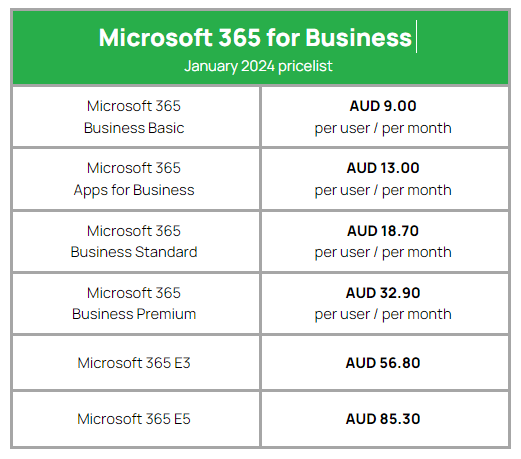
^^Please note these costs are monthly, but based on an annual commitment, and do not include GST.
Now that you have an idea of the costs involved, let’s dive into the features that you get from each plan.
All business and enterprise plans of Microsoft 365 (previously Office 365) come with the Office applications that are vital for any business. However, the Business Plans cater for a maximum of 300 users. If your organisation has more than 300 users, an Enterprise Plan is what you should be looking for.
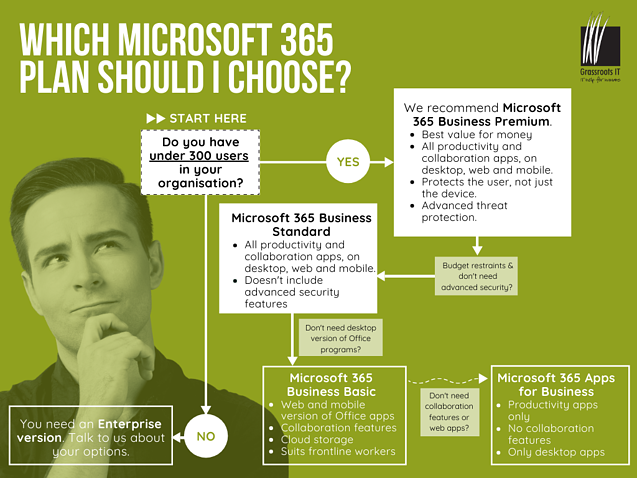
Here’s a breakdown of the main features included in each plan, starting off with the Microsoft 365 Business Plans:
Price: AUD $32.90 + GST per user/month
Ideal for: Businesses with less than 300 users that require up-to-date versions of Office applications as well as cloud services, email hosting, Microsoft collaboration tools plus more advanced cybersecurity defence and device management features.
Features include:
If you’re a business that highly prioritises data security and cyberbreach prevention then a Microsoft 365 Business Premium Plan has everything you need. You can get your always up-to-date Office 365 essentials with cloud storage, integrated Microsoft business tools plus a highly advanced Microsoft defence system so you can be confident about the security of your data and resources. Have the ability to manage the devices that access your data and create policies to make sure that your business is protected against internal cyberattacks.
Price: AUD $18.70 + GST per user/month
Ideal for: Businesses with less than 300 users that require up-to-date versions of Office applications as well as cloud services, email hosting, and Microsoft collaboration tools.
Features include:
The Microsoft 365 Business Standard Plan is perfect for your business if you require all the up-to-date Office 365 applications, as well as cloud storage and customised domain for your company email. This plan does not have the advanced security features of the Premium plan.
If you’re just looking to utilise the core functions of Office 365, which includes web and mobile versions (no desktop versions) of the Office 365 apps with 50gb mailbox allocation and 1 TB cloud storage in OneDrive, an alternative option is the Microsoft 365 Business Basics plan. This is best suited for frontline workers who aren’t sitting at a desk and therefore don’t have need for desktop versions of the Office 365 apps. It includes the productivity apps (Word, Excel, Powerpoint) as well as the collaboration apps (Teams, Sharepoint, OneDrive, Exchange).
Last on the list of the Microsoft 365 Business plans is the Microsoft 365 Apps plan which can provide for your basic Office application needs (desktop, web and mobile versions of Word, Excel, Powerpoint and Outlook) with OneDrive storage access to let you keep your files in the cloud. Basically, it’s a basic apps-only plan. On this plan, there is no shared email (via Exchange) or collaboration features (like Teams or Sharepoint).
Now that the Business Plans are covered, let’s move on to the Microsoft 365 Enterprise Plans. If what you need is a more solution for your growing organisation, these Enterprise plans offer a wider spectrum of functionalities and a higher user limit that you won’t find in the Microsoft 365 Business Plans.
Price: Contact Us for Pricing
Ideal for: A digital-driven organisation with more than 300 users that requires the essential Office 365 business tools, more storage options plus more powerful functionalities and integration between apps to keep up with the growing needs of the business using the help of Microsoft 365 enterprise technologies.
Highlight Features included:
Having a Microsoft 365 E3 Plan in your business means that your organisation has the right tools to move forward with a more collaborative approach. With fully integrated applications and administration tools in the bag, Microsoft 365 E3 enables you and your organisation to work more efficiently while maintaining the security of your corporate data.
Put simply, if you’re a business with 300 or less users and looking for solutions to start your move to the cloud and migrate data, utilise the Office 365 suite of business applications and are security conscious, then one of the Microsoft 365 Business Plans is your best option.
If you’re an organisation with more than 300 users, that has a strong digital focus, requires cybersecurity features, as well as solutions for compliance and governance, then the Microsoft 365 Enterprise Plans may prove a more effective solution for you.
Acme Engineering is a growing business, currently with 57 staff, operating out of two office locations. Engineering staff are often required to travel and work from remote locations.
Team members need access to Office application, both on desktop and mobile versions, and cloud storage services.
They are also working towards promoting a more positive collaboration culture and are interested in using the features available in Teams, such as video calls, file sharing and project collaboration.
Some of the staff are bringing their own devices to do their job and cybersecurity is a priority for the business, therefore they require advanced cybersecurity defences and device management options.
Acme Engineering decides to move to Microsoft 365 Business Premium plan which can provide the business with the appropriate features to support the growth of the organisation.
One important thing to mention is that Microsoft plans are both flexible and scalable. With scalable pricing, you can scale up and down as your business grows or you take on projects. Flexible plans and service offerings mean you can use Microsoft 365 products and services that you need now and explore additional features later. You can even mix and match to suit different staff requirements.
Before you make any decisions on a Microsoft 365 plan, the best thing to do is to start with assessing your organisation, its current and future goals. Seek the help of an expert to assist you with evaluating your readiness for the move to Microsoft 365 and which plan would best suit your organisation to ensure a smooth, easy and rewarding transition.
If you’d like more information, get in touch with the Grassroots IT team on 1300 554 138 or contact us online.
Updated 21 April 2026 with new licensing details.
Most of the conversations we have with Brisbane business owners about Microsoft Copilot start the same way. They’ve heard the pitch. They know AI is changing how businesses work. They want to know if it’s worth the investment.
That’s the wrong question to start with.
The better question is whether your business is set up to get value from Copilot once you turn it on. Because Copilot doesn’t transform a chaotic Microsoft 365 environment into an organised one: it operates within whatever environment you give it. Get the foundations right, and Copilot can be a genuine productivity accelerator. Skip them, and you’ll find it underwhelming, or worse, create new problems you didn’t have before.
After two decades working with Brisbane businesses on their Microsoft environments, here’s what we know actually needs to be in place.
Copilot draws on the information it can access within your Microsoft 365 environment: your SharePoint files, emails, Teams conversations, and documents. This is what makes it more powerful than generic AI tools like ChatGPT: it can work with your actual business information, not just publicly available knowledge.
But that’s also what makes preparation critical. If your business information is scattered across local drives, email attachments, and shared folders with no clear structure, Copilot will reflect that back to you. It might surface a document from 2018 that nobody’s looked at since. It might pull context from the wrong project. It will make the state of your information visible in ways that can be uncomfortable.
What does ‘ready’ look like? Your critical business information, the documents, processes, and data your team actually relies on, should be stored in SharePoint or OneDrive, named consistently, and reasonably current. Not every file needs to be perfect. But your sources of truth for key business functions should be findable, up to date, and in cloud storage that Copilot can access.
A practical test: if someone new joined your team today, could they locate the information they need within your digital environment? If the honest answer is ‘not really’, that’s where to start.
Here’s something most businesses don’t realise until they start thinking about AI deployment: Copilot respects the same access controls as your staff. If a user has access to a file, Copilot can surface it for them. If they don’t, it can’t.
This is by design, and it’s good for security. But it also means that whatever your permission structure looks like today, Copilot will inherit it, including any problems.
We regularly see two failure modes. The first is overly permissive environments, where broad access means Copilot can surface sensitive information to staff who shouldn’t see it. The second is overly restrictive environments, where Copilot is barely useful because users can’t access the information they legitimately need.
Before deploying Copilot, it’s worth a review of who can access what, and whether that reflects how your business actually operates. This isn’t just a Copilot consideration. It is good information governance that should be in place regardless. But Copilot makes the stakes higher.
Copilot sits on top of your existing Microsoft 365 setup. It requires current M365 apps, Word, Outlook, Teams, to be properly deployed and in active use. It requires multi-factor authentication to be enabled. It requires your environment to be configured consistently, not patched together over years of ad hoc decisions.
We see a lot of environments at Grassroots IT that have drifted over time. Licences that don’t match the user count. Security settings that were configured years ago and never revisited. Apps deployed but never properly adopted. None of these are blocking issues in day-to-day operations, but they become visible when you try to layer something like Copilot on top.
The good news is that a basic M365 health check can identify the gaps quickly. Most are straightforward to address. And fixing them makes your environment better in ways that go beyond Copilot.
This is the one organisations most often underestimate. Rolling out Copilot and expecting staff to figure it out on top of their existing workload rarely produces meaningful results. It produces a tool that people try a few times, don’t find impressive, and quietly stop using.
The businesses we see getting the most from Copilot are doing a few things differently. They’re giving staff dedicated time to experiment, not months, but enough breathing room to genuinely try things. They’re setting realistic expectations upfront: Copilot is a productivity aid, not a replacement for thinking. And they’re creating space for people to share what’s working and what isn’t, so the whole team benefits from individual discoveries.
The prompting skills that make Copilot genuinely useful aren’t difficult to learn, but they do take practice. Treat the rollout like any other tool adoption, not a software switch.
Microsoft 365 Copilot is a paid add-on licence that sits on top of your existing Microsoft 365 subscription. It currently costs from AU$26.91 per user per month (excluding GST) and requires a qualifying underlying plan: Business Standard, Business Premium, E3, or E5.
You don’t need to licence every user immediately. Most businesses start with a pilot group, team members who are likely to get the most from it and can help others learn, and expand from there once they’ve seen how it works in practice.
It’s also worth noting that Microsoft has announced pricing changes for Microsoft 365 business plans taking effect from 1 July 2026, which will affect underlying subscription costs. If you’re planning a Copilot deployment, factor that into your timing.
The businesses we work with that see the best results from Copilot aren’t necessarily the ones with the largest budgets or the most mature IT environments. They’re the ones who took the time to get the foundations right before switching it on.
That means data in the right place, permissions that make sense, an M365 environment that’s configured properly, and a team with realistic expectations and enough time to learn. None of that is complicated. But it’s the work that determines whether Copilot delivers or disappoints.
If you’re considering a Copilot deployment and want to understand where your environment stands, a readiness assessment is a good starting point. It identifies what’s in good shape, what needs attention, and what a practical rollout would look like for your business specifically.
Grassroots IT is a Brisbane-based managed IT services provider specialising in Microsoft solutions for businesses. If you’d like to talk about Microsoft Copilot readiness, contact us at grassrootsit.com.au/microsoft-copilot/
The question of whether you should be backing up your Microsoft Office 365 data will often illicit passionate arguments from both sides. On one hand, you have those who argue that Microsoft 365 already has built-in backup and disaster recovery features, making an additional backup unnecessary. On the other hand, you have those who swear by Office 365 backups as a necessary precaution against potential data loss.
But what is the truth? Is backing up your Microsoft 365 data necessary or is it all just a conspiracy by software vendors to sell you more products. The answer to that will ultimately depend on what purpose you see Microsoft 365 backups serving.
The fact is that the Microsoft 365 platform is built from the ground up with resilience and data-integrity in mind, so many of the traditional reasons for backups, such as protecting against data corruption or system failure, are simply no longer of concern.
In addition to that, Microsoft 365 has various features to protect against other forms of data loss, such as accidental deletions and malicious attacks (assuming of course that you have appropriate licensing). So why bother with a backup then?
In our years of experience at Grassroots IT supporting clients with Microsoft 365, there are still several scenarios where the native data recovery capabilities can fall short, and third-party Microsoft 365 backups will shine.
For those clients looking to actively minimise their licensing costs by choosing a lower-end plan, third-party backup solutions can provide functionality that might otherwise be missing, such as the Litigation Hold feature found in the more complete plans. Litigation hold is an invaluable tool for eDiscovery and compliance purposes, essentially allowing you to indefinitely keep any emails or documents. In lower-end plans without this feature, deleted data will ultimately become unrecoverable after a set retention period, unless you have third-party Microsoft Office 365 backups in place.
Another related scenario that we often face with cost-conscious clients is what to do with staff members’ Microsoft 365 data when they leave the organisation. To keep their profile fully active would require a paid license, while to archive their mailbox into a free shared mailbox would only retain their mailbox, and not data stored elsewhere, such as in OneDrive. With a third-party backup solution in place, the ex-staff member’s account can be fully deleted, safe in the knowledge that all their Microsoft 365 data has been retained within the backups.
While the native Microsoft 365 backups do retain previous versions of your files to allow recovery from unwanted deletions, they can only go back so far, and don’t always allow you to restore from a particular point in time very easily. External backups on the other hand, provide you with the flexibility to restore from any point in time that has been captured within your backup schedule.
For organisations subject to strict compliance regulations, such as those in healthcare or finance industries, having an additional layer of control over your Microsoft 365 data is non-negotiable. Microsoft 365 backups are also important for organisations looking to improve their cybersecurity posture by aligning with one of the major frameworks, such as the Essential Eight.
It’s a scenario we all hope to never encounter, but the reality is that data can be intentionally deleted by disgruntled employees or external attackers. While Microsoft 365 does have a feature to recover recently deleted items, this only works if the data is still within the retention period and hasn’t been permanently deleted. Third-party backups are an essential safeguard against these types of malicious actions, ensuring that your organisation’s critical data remains safe and accessible.
As capable as the native data recovery features of Microsoft 365 are, they don’t always make it easy to rapidly restore the data that you need, nor to recover the full structure of data, such as email folder structure or SharePoint document libraries. With third-party backups, you know you can quickly and easily restore large quantities of data without any hassle.
Ultimately the decision is yours: are Microsoft 365 backups a necessity or overkill? From our perspective we see the addition of a third-party backup solution to your Microsoft 365 tenant as a wise investment. In some cases, it can provide the belt to Microsoft 365’s braces, while in other cases, without external backups, you may truly be sod-out-of-luck.
If you would like to talk about backing up your Microsoft Office 365 data, contact us today.
